
Connect to FlowFast through MCP
Connect FlowFast to your AI assistant to find cards, browse boards and prepare summaries in a chat. With permission to modify data, the assistant can also perform supported actions on your behalf.
The MCP server is hosted in the FlowFast cloud. You do not need to install or run a server yourself.
MCP server URL
https://mcp.flowfast.io/mcpAfter an administrator allows MCP connections as described below, enter the MCP server URL in your client, then sign in to FlowFast in your browser. When automatic OAuth registration is enabled on this server, you do not need to enter a client_id, client_secret or API token.
1. Allow MCP connections in your company
- An administrator with permission to manage MCP opens Administration → MCP connections and enables Allow MCP connections. If the section is unavailable, contact FlowFast support: support@flowfast.io
- Each user adds the server in their own AI client, signs in to FlowFast and grants access.
Adding the URL alone does not grant access. Until an administrator allows MCP connections, authorization is denied, for example with access_denied. If connections are already allowed, check that you selected the correct company during sign-in.
2. Add the server to your MCP client
Any MCP client that can connect to a remote server by URL and meets the client requirements below will work. Menu and command names differ between clients: see your client’s documentation for where MCP servers are configured.
- Open the MCP server settings in your client and add a new remote (custom) server.
- Fill in the connection settings from the table below and save.
- Start authentication for the added server. The client opens the FlowFast sign-in page in your browser; continue with the next step.
| Field | Value |
|---|---|
| Name | mcp-flow-fast |
| Type | Streamable HTTP (some clients call it HTTP) |
| URL | https://mcp.flowfast.io/mcp |
| Bearer token and headers | Leave empty — access is granted through OAuth. |
The server name is a label for your convenience: choose any name.
If your client is configured through a file, the server URL is the only required value; leave OAuth credentials and token headers out. A typical entry looks like this. The file location and key names depend on the client:
{
  "mcpServers": {
    "mcp-flow-fast": {
      "url": "https://mcp.flowfast.io/mcp"
    }
  }
}
3. Sign in and choose permissions
OAuth lets the client work on your behalf without receiving your password.
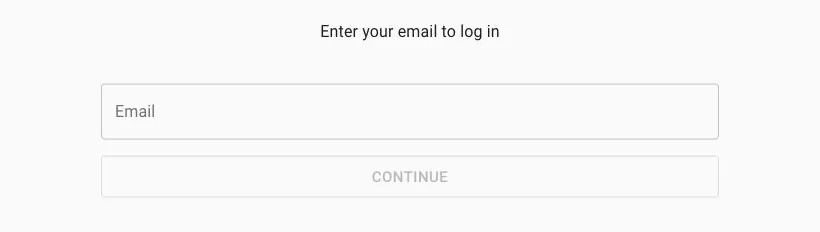
- Enter your FlowFast account email and complete sign-in. Enter the code from your email, or follow your company’s sign-in flow.
- If you belong to several companies, select one with MCP connections enabled.
- Only approve access if the sign-in page opened right after you started the connection in your client, not from a link someone sent you. Check that the application domain, when shown, belongs to the client’s publisher (see below). An unverified-name notice means the application supplied its own name. Check the selected company, choose permissions and click Allow access.
If the access request screen shows an application domain, check that it belongs to the publisher of your client. If the domain is different, do not grant access: update the client to the latest version and reconnect. If the domain is still different, contact FlowFast support.
If no application domain is shown, check the Callback host: for a client running on your computer it must be 127.0.0.1 or localhost followed by a port number. If an external domain is shown, do not grant access.
Read only
View the spaces, boards, cards, documents, folders and Story maps available to you through MCP tools. This is enough to try the connection and prepare summaries.
Read and modify
Also create, edit, delete and archive data through supported tools, within your permissions in the selected company.
After the browser confirms sign-in, close the tab and return to your client. Open a new chat to use the connection.
4. Try your first request
The client receives the list of available tools from the server automatically (tools/list): you do not need to configure them. Send this in a new chat with your assistant:
Using FlowFast MCP, show the spaces I can access and the boards in the first space. Do not change anything.The assistant will request data from FlowFast and show the result. If your client asks for permission to call a tool, review the action before allowing it.
- Find cards about the website launch and summarize their status.
- Summarize this board: what is complete and what is still in progress?
- With permission to modify data: create a card named “Prepare the launch plan” on the specified board.
Permissions, security and limitations
MCP acts as the signed-in user in the selected company. It does not expand your permissions or grant access to spaces, boards or cards that you cannot access in FlowFast.
The AI client receives the results of requests to FlowFast to carry out your instructions. Follow your company’s rules for using external AI services.
Available actions depend on your OAuth permission choice, your current FlowFast permissions and the implemented MCP tools. Read only blocks actions that modify data.
Read and modify can allow deletion and archiving. Per-action confirmations depend on the AI client’s settings; MCP itself does not guarantee a separate confirmation before every change.
MCP provides the tools currently implemented. Not every action in the FlowFast interface is available. The set of tools may change.
Sign in on the FlowFast page. You do not need to give the assistant your password, email code or personal API token for this connection method.
Disconnect an application
In FlowFast, open your profile → MCP connections, find the application and click Disconnect. An administrator with the relevant permission can manage company connections and disable MCP for the whole company.
If something goes wrong
Error 429 or 503: retry after the interval shown by your client, or after one minute if no interval is shown.
“Application registration expired”: reset the saved OAuth authorization in your client and reconnect using the same MCP URL. This can happen if setup is left unfinished for more than 30 minutes. If reconnecting does not help, contact FlowFast support.
The client asks for a client ID or secret: update the client to a version that supports automatic OAuth registration, and check with support that registration is enabled on the server.
Cannot sign in: check the administrator’s setting and the company selected during sign-in.
Data does not load after sign-in: contact FlowFast support with your client name and version, the time of the error and its message.
Client requirements
The server follows the Model Context Protocol and does not depend on a particular client. A client can connect if it supports the following:
| Field | Value |
|---|---|
| Server URL | https://mcp.flowfast.io/mcp |
| Transport | Streamable HTTP |
| Authorization | OAuth Authorization Code with PKCE S256 |
| Client registration | Client ID Metadata Document (CIMD) or dynamic client registration (DCR) |
| Token endpoint authentication | none |
The client must support Streamable HTTP and OAuth Authorization Code with PKCE S256, using a Client ID Metadata Document (CIMD) or dynamic client registration (DCR). Token endpoint authentication must support none. Applications requiring only private_key_jwt or client-secret authentication cannot use this connection method.